The answer: Open Find My on another Apple device, or sign in at icloud.com/find from any browser, select the iPhone, and act: Play Sound if it is nearby, Lost Mode if it is not. Apple says some iPhones keep reporting through the Find My network after powering off, but Find My must have been turned on before the loss.
Table of contents
A lost or stolen iPhone is stressful, and the device is easiest to find while its battery is alive and it is still near where you left it. This guide serves two readers: the person who needs to log in right now, and the person who wants to understand the system before anything goes wrong.
The steps below follow Apple’s published Find My documentation (locating a lost device, finding a lost iPhone or iPad, and turning on Find My), plus Apple’s Find My overview. Android users should read the Google Find My Device complete guide instead.
What to do right now if you just lost your iPhone
First actions, in order
- Sign in at
icloud.com/findfrom any device - Enable Lost Mode before anything else: it locks the iPhone and keeps tracking it
- Play a sound only if the phone is clearly nearby, never when it might be with a thief
- File a police report before contacting your carrier for an IMEI block
Open this on a laptop, tablet, or another phone, and run these steps in order.
- Go to icloud.com/find in any browser. Sign in with the Apple Account that is on the lost iPhone. If verification asks for a code and your only trusted device is the lost one, use the account-recovery options on the sign-in screen, which can route a code to a trusted phone number.
- Select your iPhone from the device list. Look at the timestamp under the device name. A fresh timestamp means the iPhone is online and reporting. A stale timestamp or an offline label means it is unreachable, out of battery, or out of network.
- Turn on Lost Mode. This locks the screen with your passcode, suspends Apple Pay cards and passes, lets you display a phone number on the lock screen, and keeps the device reporting its position. Do this even if the location looks correct, since it freezes the device against misuse.
- Play a sound only if the location suggests the phone is nearby, such as your home, car, or office. The chime plays at full volume even on silent. If the location looks wrong or the phone is clearly not nearby, skip the sound so you do not alert a thief.
If the iPhone appears at an unfamiliar address, do not drive there. Move to the stolen iPhone section below. The recovery path through the police is the only safe option.
How to log in to Find My iPhone from a computer
The fastest path when your only working device is a computer is the web app at icloud.com/find. It works in current browsers on any operating system, including Windows. There is no Find My desktop app for Windows.
- Open icloud.com/find (note: the path is
/find, not/findmy). - Enter the Apple Account email and password.
- Complete verification. If your only trusted device is the missing iPhone, look for the option to receive a code by SMS at a trusted phone number.
- Open the device list and select the iPhone.
A common login failure is the wrong account. If the iPhone is signed in with a personal account but you type a work address, the device simply does not appear. Sign out and try the other address before assuming Find My is broken.
TL;DR: icloud.com/find works on any computer. The account must match the one on the lost iPhone, and Find My must have been enabled before the loss.
How to use Find My iPhone from another iPhone or iPad
The native Find My app on a second Apple device is faster than the web and shows extra detail such as battery status. It is the better tool when you have it.
- Open the Find My app (built into current iOS, found on the Home Screen or in the App Library).
- Tap Devices at the bottom.
- Pick the lost iPhone from the list.
- Tap Directions for routing, or Notify When Found if the iPhone is offline, so you get a notification the moment it reconnects.
If you are in a Family Sharing group, a family member’s device can also appear in Find My on your devices, provided location sharing is set up. Sharing is per person, not automatic for the whole group. If someone can still see your dot after you thought you stopped sharing, the Family Sharing access checklist walks through the switches that control it.
What last location means and how accurate Find My is
The map dot is a calculated estimate based on the best signal source the iPhone could reach. Apple’s positioning stack prefers GPS satellites outdoors, falls back on Wi-Fi positioning indoors, and uses cellular signals where nothing better exists. For an offline device, the Find My network can supply an approximate position relayed by nearby Apple devices.
| Signal source | Precision | Common scenario |
|---|---|---|
| GPS outdoors | Highest, often building-level | Phone in a park, parking lot, or street |
| Wi-Fi positioning indoors | Medium, visibly less precise | Phone inside a home, office, or mall |
| Cellular only | Lowest, can cover a wide area | Phone in the countryside with no Wi-Fi nearby |
| Find My network relay | Approximate | Phone offline or powered off |
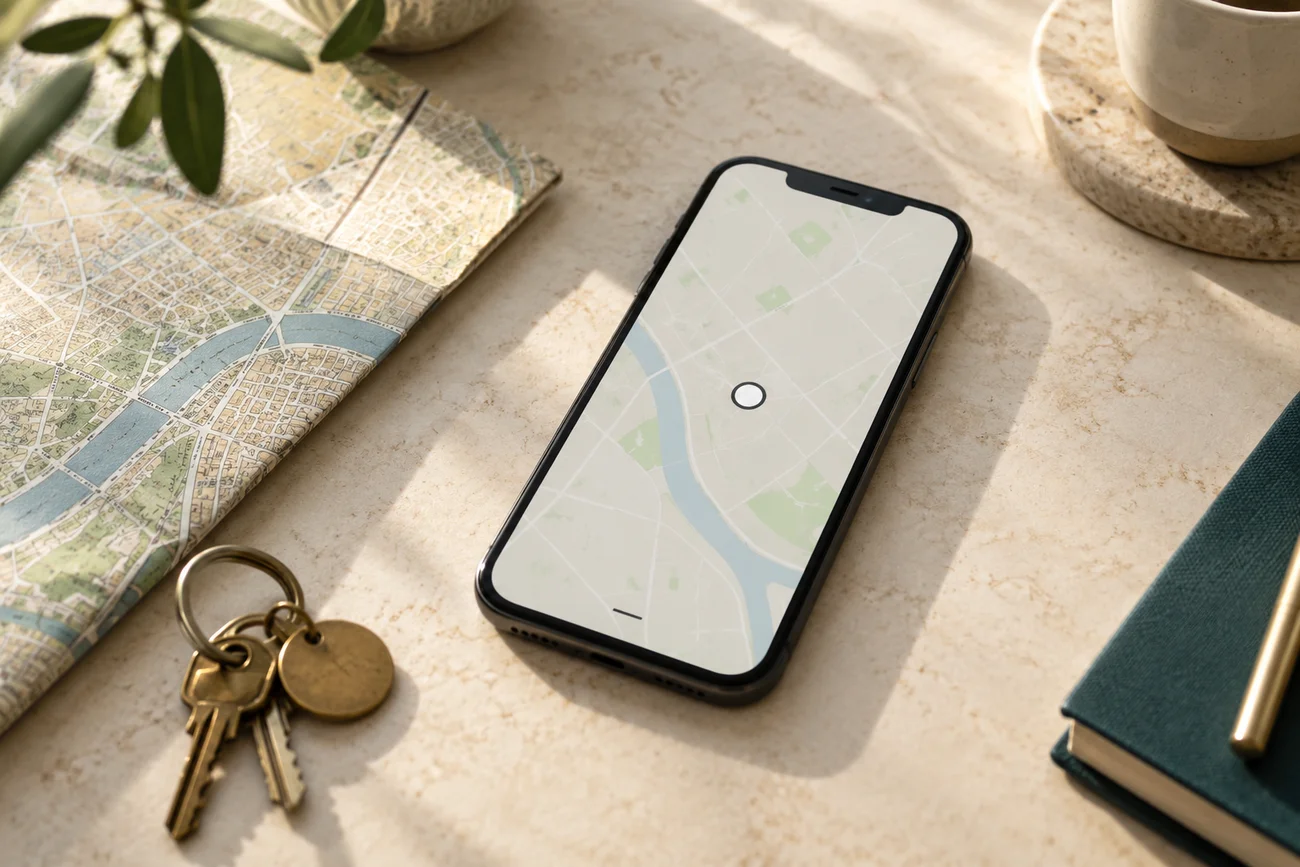
The blue circle on the map shows the confidence radius. A tight circle means a strong fix. A circle covering a whole block means a rough estimate. The timestamp matters as much as the dot: a fresh report means the iPhone is currently reachable, while a stale one usually means a dying battery or lost network. If the screen shows no result at all, read what No Location Found means before changing settings.
Finding an iPhone that is offline or powered off
Apple says some iPhones can still send their location for a period after being powered off or running low on battery, using a low-power signal that nearby Apple devices relay back through the Find My network. Only your account can resolve those reports into a position on your map. Because support varies by model and settings, treat any offline dot as approximate and check its timestamp.
Two prerequisites decide whether any of this works. The iPhone must be signed in with Find My turned on, and the Find My network toggle (Settings, your name, Find My, Find My iPhone) must be on. Send Last Location on the same screen is equally worth enabling: it pushes one final report when the battery runs low. All three must be set before the loss. Apple’s setup guide documents each toggle.
Actions you can take on a lost iPhone remotely
Five actions are available from icloud.com/find or the Find My app, and order matters. Use them like this.
Play Sound. Triggers a loud chime even on silent. Use only when the device is at a location you trust.
Lost Mode. Locks the screen with the existing passcode (or sets one if none exists), suspends Apple Pay, and lets you display a custom message and callback number. The iPhone keeps reporting location. This is the single most important action for a missing device.
Directions. Opens routing to the iPhone’s last known location. Use only to confirm a benign location such as a friend’s apartment or the gym, never to retrieve a phone from a stranger.
Notify When Found. Toggle this if the device is currently offline. The moment it reconnects, you get a notification. People often learn their iPhone resurfaced days later when someone plugs it in.
Erase iPhone. Wipes the device remotely. Use this only as a last resort, because an erased iPhone stops reporting location. Activation Lock stays tied to your account, so the device still cannot be reused by someone else.
If the iPhone was stolen: the legal recovery path
Theft differs from loss. The phone is in someone else’s hands, and they have a reason to hide it. Do not try to retrieve it yourself. Confronting a stranger over a phone is dangerous and is not what Find My was designed for.
The proper sequence:
- Turn on Lost Mode to lock the iPhone and keep it reporting.
- File a police report. Bring the serial number (visible on any other device signed in to your account, on the original box, or in your Apple Account settings) and screenshots of the Find My map with timestamps.
- Call your carrier and request an IMEI block. This stops the device from connecting to that carrier’s network. The IMEI versus GPS tracking guide explains what a block can and cannot do.
- File an insurance or AppleCare+ Theft and Loss claim if you have coverage. Apple warns not to remove the iPhone from Find My or your account until the claim is fully approved.
- Do not erase the device until law enforcement advises it or you have given up. Once erased, location reporting stops.
Activation Lock engages automatically when Find My is on. It ties the device to your Apple Account on Apple’s servers, so a reset alone never makes a stolen iPhone usable. Stay alert for follow-up scams as well: Apple says it will never contact you to say your device was found, so treat such messages and calls asking for codes or passwords as phishing. Apple’s lost-device guide states this warning directly.
Find My iPhone prerequisites
Find My only works if the device was set up correctly before the loss. Verify these on every iPhone you care about:
- Settings, your name shows your Apple Account is signed in.
- Find My iPhone is on under Settings, your name, Find My.
- Find My network is on (enables offline relay).
- Send Last Location is on (sends a final report when the battery runs low).
- Settings, Privacy and Security, Location Services is on at the system level.
The single biggest reason recoveries fail is that one of these was off. Check them now on every iPhone, iPad, and Mac you own, while all of them are still in your hands.
Common Find My problems and fixes
Offline with no updates. The iPhone has been off the network long enough that even relay reports stopped. Check the timestamp, keep Lost Mode and Notify When Found on, and wait for a reconnection rather than refreshing the screen.
No Location Found. This message covers both missing devices and unreachable shared people, and each needs different steps. The No Location Found guide starts with the tab and works from there.
Location is obviously wrong. Indoor positioning can misfire: a phone with no GPS fix may pin to a nearby network and land a block away. Wait, refresh, and weigh the timestamp and the size of the accuracy circle before acting.
The web version shows no devices. You are signed in with a different account than the one on the missing iPhone. Sign out of icloud.com and back in with the correct address. If the missing iPhone was never signed in with your account at all, Find My cannot help, and the carrier is your remaining path.
Login keeps failing. Either the account is wrong, or verification cannot reach you because the trusted device is the lost one. Use the SMS fallback at the verification screen, or contact Apple Support to recover account access.
What if someone else has my lost iPhone?
A stranger who picks up your iPhone cannot do much with it. Activation Lock blocks reuse, and the Lost Mode screen shows your message and callback number. Honest finders usually call.
If the device appears at a residential address you do not recognize, file a police report and let law enforcement retrieve it. Your data and your safety are worth more than a confrontation. For an Android loss in the family, the equivalent system runs on Google’s network rather than Apple’s: see the Google Find My Device complete guide for the parallel walkthrough.
Frequently asked questions
How do I find my iPhone if it is offline or powered off?
Open icloud.com/find or the Find My app on a second device and check the timestamp under the device name. Apple says some iPhones keep sending their position through the Find My network after powering off, with nearby Apple devices relaying the signal. Older or unsupported setups show only the last reported position. Either way, turn on Notify When Found and Lost Mode so you hear the moment it reconnects.
How accurate is Find My iPhone location?
It depends on the signal source. An outdoor fix with a clear view of the sky is the most precise, often close enough to identify a building. Indoors, the iPhone falls back on Wi-Fi positioning, which is visibly less precise. In rural areas with cellular signals only, the estimate can cover a wide area. The blue circle on the map shows the confidence radius: a tight circle means a strong fix, a wide one means a rough estimate.
Can I track my iPhone without the Find My app?
Yes. Sign in at icloud.com/find from any web browser on a computer, tablet, or another phone. Use the same Apple Account that is on the missing iPhone and complete the verification step. The web version offers Play Sound, Lost Mode, Notify When Found, and Erase iPhone, matching the native app. If the device list is empty, you are likely signed in with the wrong account.
What is the difference between Find My iPhone and the Find My app?
Find My iPhone was the original standalone service. In iOS 13, Apple merged it with Find My Friends into a single app called Find My, which now covers devices, people, items, and AirTags. Most people still search for the old name out of habit. Both names refer to the same system today, and the web address is still icloud.com/find.
Will factory resetting a stolen iPhone remove Activation Lock?
No. Activation Lock is tied to your Apple Account on Apple's servers, not to data on the device. After any reset, the iPhone demands the original Apple Account and password during setup before it can be used again. That is why keeping Find My enabled matters more than any physical precaution. Never remove a stolen device from your account while recovery or an insurance claim is still open.
Can the police use Find My location data to recover my iPhone?
It can support a report, but officers decide how to use it. Bring the serial number, the IMEI, and screenshots of the Find My map with visible timestamps. File the report before asking your carrier for an IMEI block, and never go to a stranger's address yourself. Retrieval at a residential address is a job for law enforcement, not for the phone owner.