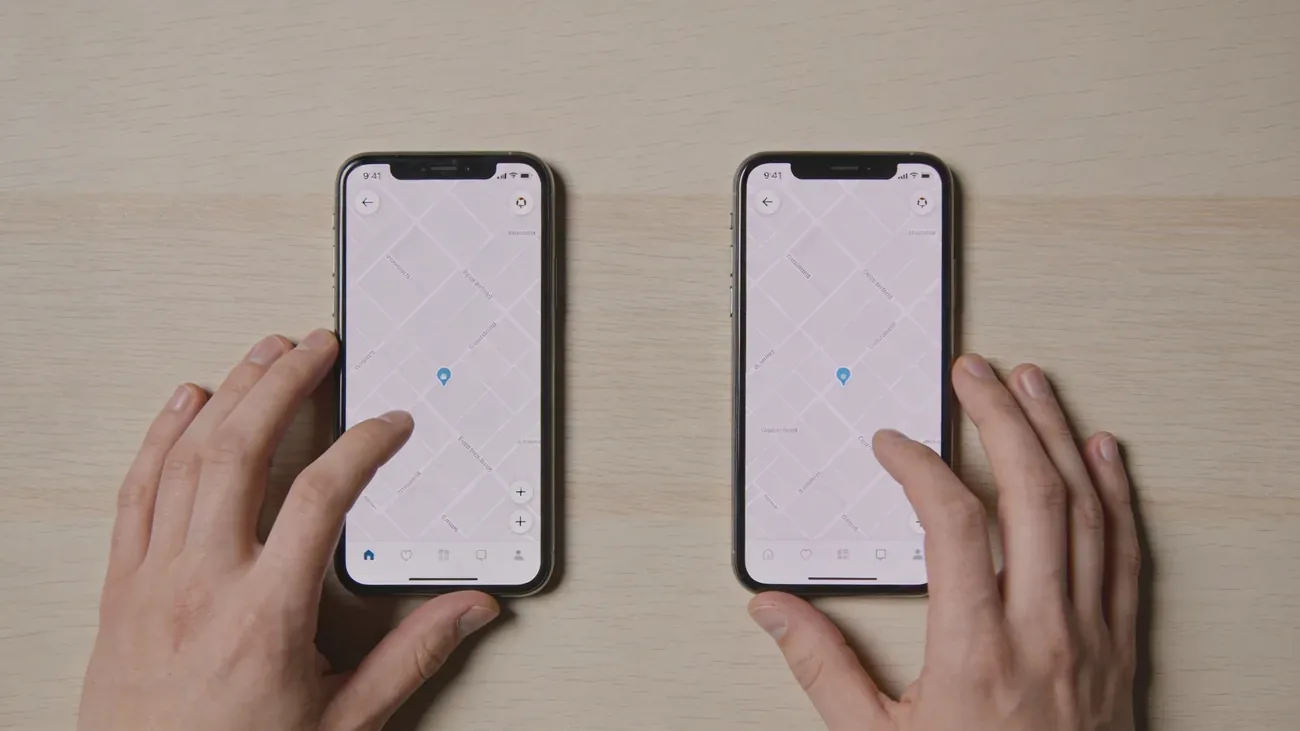
The useful distinction: Open Google Maps, tap your profile picture, then Location sharing and New share. Choose how long, pick a contact whose Gmail address is in your Google Contacts, and tap Share. In Google Messages, tap Attachment, then Real-time location, to share inside a conversation instead.
Table of contents
To share your location on Android, open Google Maps, tap your profile picture, then Location sharing and New share. Choose how long, pick a contact whose Gmail address is in your Google Contacts, and tap Share.
Google Maps is one of three doors. Google Messages shares a live location inside a chat, and Find Hub keeps every share in one list. All three feed the same account setting, so picking an app is mostly about where you already are.
Pick the right way to share
| You want to | Use | How long it lasts | Needs |
|---|---|---|---|
| Share inside a chat | Google Messages, Attachment > Real-time location | 1 hour, today only, until you turn it off, or custom up to 24 hours | You signed in to a Google Account |
| Stay on someone’s map | Google Maps or Find Hub | One hour up to until you stop | Their Gmail address in your Google Contacts |
| Reach someone without a Google Account | A link from Maps or Find Hub | Up to 24 hours from Maps | Anyone with the link can see you |
| Let someone follow a trip | Share trip progress in Maps | Until you arrive or stop navigating | Navigation running |
| Reach WhatsApp contacts | WhatsApp Live Location | 15 minutes to 8 hours | WhatsApp on both phones |
| Send a short live link | LocateKit live location | 15, 30 or 60 minutes | A browser, no account or app |
| Update people with no signal | Satellite in Find Hub or Maps | One update at a time, up to 5 in 24 hours | Pixel 9 or newer (not 9a) and an existing share |
Google’s Location Sharing help lists Maps, Messages, Find Hub, Family Link and Personal Safety as apps that run on one setting, Google Location Sharing. That is why a share started in Maps also appears in Find Hub, and why stopping it once ends it everywhere.
Share your location in Google Maps
- Open Google Maps and check that you’re signed in to your Google Account.
- Tap your profile picture, then Location sharing, then New share.
- Choose how long. Until you turn this off keeps sharing until you stop it.
- Tap the person, allow contacts access if asked, and tap Share.
The person needs a Gmail account, according to Google Maps help for Android. For anyone else, tap Copy to clipboard on the New share screen and paste the link into a text or email. The link works for up to 24 hours.
While navigating by car, on foot or by bike, swipe up on the information card and tap Share trip progress. Sharing ends when you arrive or stop navigation. The Google Maps location sharing guide goes deeper on links, trips and durations.
Share your location in Google Messages
- Open Google Messages and the conversation with the person or group.
- Tap Attachment, then Real-time location. The first time, tap I accept to confirm the change to your Location Sharing settings.
- Choose For 1 hour, Today only, Until you turn this off, or a custom duration of up to 24 hours.
- Tap Send.
If someone has already shared with you, tap their location message and tap Share next to your name to answer in kind. Google’s Messages help adds one caveat: the chat stays end-to-end encrypted, but the location share itself is processed by Google under its Terms of Service. You must be signed in to a Google Account.
Share your location in Find Hub
Find Hub is the app that used to be called Find My Device, and it is the best place to see every share at once.
- Open Find Hub. If you have no shares yet, tap Start share.
- Check the preview. It shows your location, name, avatar, address and battery percentage.
- Choose One hour, Until the end of the day (11:59 PM), Until you stop the share, or a custom duration.
- Pick one or more people and tap Create share, or tap Get link to share to send a link.
Recipients who have Find Hub or Google Maps with notifications on get a notification, and everyone else gets an email. A link can’t be set to run until you stop, and Google’s Find Hub help warns that anyone with the link can see your location and other personal information. The Find Hub guide covers the app’s other job: ringing, locking or erasing a lost phone.
Share your location from Android to iPhone
An iPhone owner can follow you in three ways, and only Google Maps can run indefinitely.
- Google Maps on the iPhone. If your friend installs Google Maps and has a Gmail account, share with that address as usual. They tap their profile picture, then Location sharing, and tap your name, per Google Maps help for iPhone.
- A link. Copy a link from Maps or Find Hub and text it. The iPhone owner needs no Google Account, and a Maps link lasts up to 24 hours. Our live location link does the same for 15, 30 or 60 minutes in a browser, with no account or app on either side.
- WhatsApp. A Live Location works the same on both platforms, as the next section shows.
Google doesn’t say whether an iPhone can open a real-time location from Google Messages, so use Maps or a link. The iPhone location sharing guide covers the reverse direction.
Share your location on WhatsApp
- Open the chat in WhatsApp and tap the paperclip icon.
- Tap Location and allow access if asked.
- Tap Share Live Location and pick a period from 15 minutes up to 8 hours.
Tap Send Your Current Location instead for a one-time snapshot that doesn’t move with you, as Wired’s walkthrough describes.
No signal or an emergency
On a Pixel 9 or newer (the 9a excluded), Google can send a one-time location update via satellite on supported carriers and in supported countries. It works only for people you already share with, so you can’t start a new share this way. In Find Hub, tap People, then the banner that offers to connect to satellite, or tap Connect on the matching banner in Google Maps under Location sharing.
Stand in the open with a clear view of the sky and point the phone upward. Google’s satellite sharing help allows up to 5 updates in 24 hours, at least 15 minutes apart, and people see the update in Find Hub, Maps or Family Link.
Emergency sharing varies by manufacturer. On many phones, Settings > Safety and Emergency has a Share info with emergency contacts switch that sends your real-time location when you trigger Emergency SOS.
What the other person sees
People you share with see your name, profile picture and real-time location, plus your battery level and whether you’re charging. Your location keeps updating even when you aren’t using a Google app. Google Maps may also show how you’re traveling, walking or driving, and where you’ve recently been.
Location Sharing sometimes names a place instead of a pin, such as the restaurant or shop you’re in, and in a busy area it can pick the wrong one next door. For each person, you choose whether they can set arrival and departure notifications about you. The arrival alerts guide shows how those work on both platforms.
Pause or stop sharing
Stop one person in the app you used. In Maps, tap your profile picture, then Location sharing, the person, and Stop. In Messages, tap your location message, then Stop and Stop sharing. In Find Hub, tap the person, tap Stop sharing and confirm.
Because shares belong to your account, stopping in one app ends the share in every app that uses Google Location Sharing. The full list also lives in Settings > Location > Location services > Google Location Sharing, where you can tap Stop next to any name.
To pause everything without ending the shares, turn off Use Location Sharing on that same screen. Your shares stay, but they stop updating until you turn the setting back on, and Google Maps keeps working. The setting is per device, so repeat it on a tablet signed in to the same account.
For other apps and phones, and for what the other person notices, see the guide to stopping location sharing.
Frequently asked questions
Does sharing location drain my battery?
Some, but Google publishes no figure for it. A share keeps reporting your recent location even when you aren't using Google apps, so updates continue in the background for as long as the share runs. When you only need it for a trip, pick a timed share such as For 1 hour instead of Until you turn this off. Turning off Use Location Sharing in Settings pauses the updates without deleting your shares.
How do I share location on WhatsApp?
Open the chat, tap the paperclip icon, then Location. Choose Share Live Location and set a period from 15 minutes up to 8 hours, or tap Send Your Current Location for a one-time snapshot that doesn't move. The feature works the same on Android and iPhone, which makes WhatsApp a simple way to share for a few hours with a friend on either platform.
What happens when you share location on Google Maps?
The person can see you in Google Maps and Find Hub: your name, photo, real-time location, battery level and whether you're charging. Your position keeps updating even when you aren't using Google apps, and sharing works with Timeline turned off. The share runs for the time you picked. Stopping it in any Google app, including Maps, Messages or Find Hub, ends it everywhere.
How do I track family members' location on Android?
Ask them to share with you from Google Maps, Messages or Find Hub; you can't switch on someone else's location from your phone. If you already share with their Google Account, Find Hub's Request location sends them a notification and an email asking for theirs. For a child with a supervised Google Account, a parent manages location sharing through Family Link, and those shares also appear in Find Hub.
Can I share my location from Android to iPhone?
Yes. For a share that can run indefinitely, use Google Maps: share with the iPhone owner's Gmail address, and they see you in Google Maps on the iPhone under Location sharing. For someone without a Google Account, send a Maps link, which lasts up to 24 hours. WhatsApp Live Location also works across both platforms for 15 minutes up to 8 hours. Google doesn't say whether a Google Messages location card opens on an iPhone.
How do I share my location permanently on Android?
Choose Until you turn this off in Google Maps or Messages, or Until you stop the share in Find Hub. The share then runs until you end it. Two limits apply. The person needs a Google Account, because links last 24 hours at most and Find Hub can't create an open-ended link. And accounts Google believes belong to someone under 18 can't share for more than 24 hours.