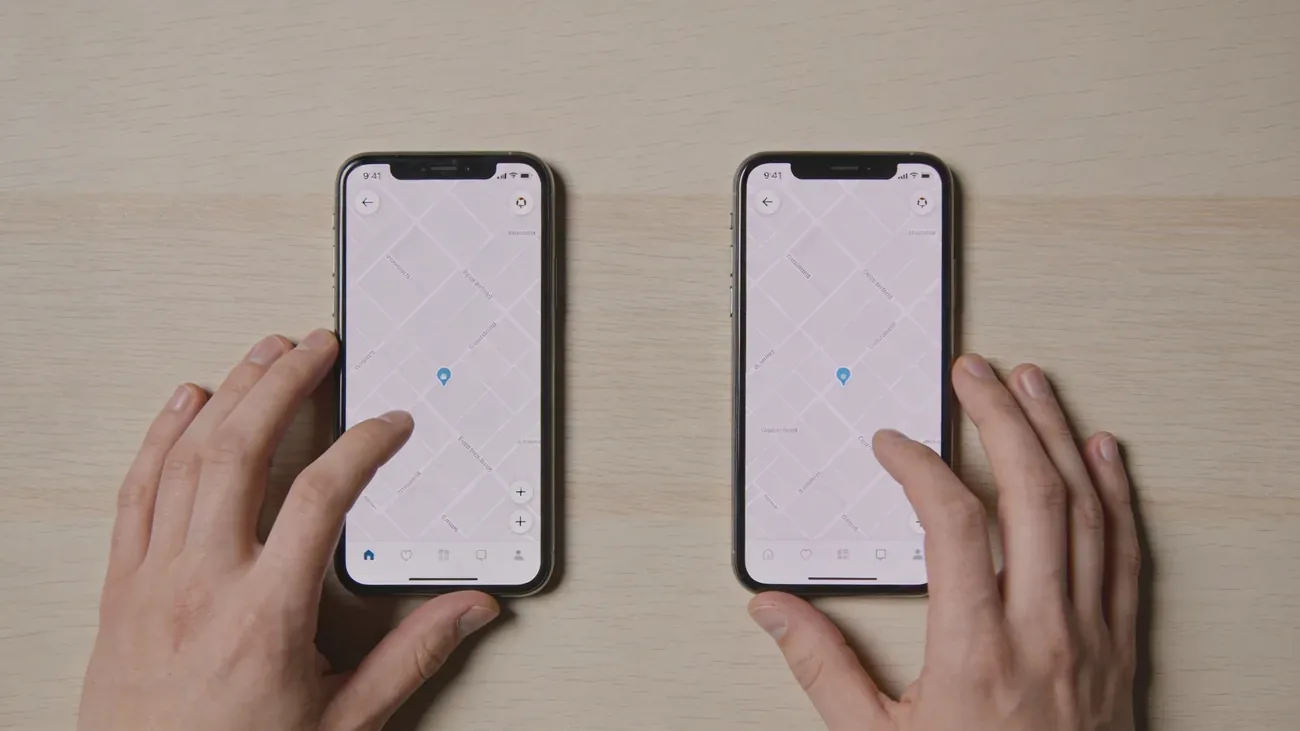
The useful distinction: Open Find My, tap Me and turn on Share My Location. Then tap People, tap the Add button, choose Share My Location, pick a contact, and choose an hour, until the end of the day, indefinitely, or a custom time. In Messages, tap the Plus button, then Location, then Share to do the same inside a conversation.
Table of contents
To share your location on iPhone, open Find My, tap Me and turn on Share My Location, then tap People, tap the Add button and choose Share My Location. Pick a contact and decide how long: an hour, until the end of the day, indefinitely, or a custom period.
That is only one way an iPhone hands over its position, and the options behave differently. A pin dropped in Messages is a snapshot that never moves. A Live Location follows you in real time, direction and speed included. Check In shares nothing at all unless you fail to arrive. Picking the right one is most of the job.
Pick the right way to share
| You want to | Use | How long it lasts | What they see | Needs |
|---|---|---|---|---|
| Show where you are right now | Pin in Messages or Maps | One snapshot | A fixed spot that doesn’t update | Nothing extra |
| Let someone follow your trip | Share ETA in Maps | Until you arrive | Your Live Location and stops along the route | Directions running |
| Alert someone only if you don’t arrive | Check In in Messages | Until you arrive or a timer ends | Nothing, unless you’re late and don’t respond | iOS 17 on both iPhones |
| Stay on someone’s map | Find My or Messages | An hour, end of day, indefinitely, or custom | Live Location with direction and speed | iOS 15 on both iPhones |
| Share with your whole family | Settings > Family | Until you turn it off | Your location in Find My | A Family Sharing group |
| Reach an Android phone | Google Maps, WhatsApp, or a link | 15 minutes to “until you turn this off” | A map in an app or a browser | Depends on the method |
| Share with no cell or Wi-Fi signal | Find My via satellite | One update every 15 minutes | Your last sent spot, for up to 7 days | iPhone 14 or later |
Find My and Messages are two doors into the same room. Apple’s overview of iPhone location sharing says your location is shared the same way whichever app you start from, and that the person you share with sees it in the same places. Use the app you already have open.
Share your location in Find My
Find My is the right home for long-running shares, because it shows everyone you share with in one list.
- Open Find My and tap Me. Turn on Share My Location.
- Read the line next to Sharing From. It names the device that reports your position. If it says your iPad or an old phone, tap Use This iPhone as My Location.
- Tap People, tap the Add button, then choose Share My Location.
- In the With field, enter a name or pick a contact, tap Send, and choose how long.
Custom lets you set a duration or an exact end time, which is handy for a weekend trip. The same master switch also lives in Settings > [your name] > Find My. Apple’s Find My sharing guide adds one detail: if your iPhone is paired with a GPS + Cellular Apple Watch, the watch takes over sharing when you leave the phone behind and wear the watch.
When someone asks for your location, the request waits under People. Tap Share below their name and choose a duration. If you’d rather not get requests from strangers who have your number or email, tap Me and turn off Allow Friend Requests. Under Me you can also set a Location Label such as Home or Work. The complete Find My guide covers the rest of the app, from lost devices to AirTags.
Share your location in Messages
Messages is faster when you’re already in a conversation, and the share sits right in the thread.
- Open the conversation and tap the Plus button.
- Tap Location, then tap Share.
- Choose how long. Indefinitely keeps sharing until you stop it yourself.
- Send the message.
When someone texts “where are you?”, iOS often shows Current Location above the keyboard, which shares in one tap. To ask for someone else’s location, tap Plus, then Location, then Request, or send a message ending in “Where are you?” and tap Request Location.
Two limits catch people out. Live Location works only in an iMessage conversation; in an SMS conversation, the Messages guide says to send a pinned location instead. And if you share with a group and later add people, you have to reshare for the newcomers to see you.
Send a one-time pin or your ETA
A pin is the right tool when you only need to say “I’m here.” In Messages, tap Plus, then Location, tap the Map Pin button, drag the map until the pin sits where you want it, and tap Send Pin. In the Maps app, scroll down, tap Share My Location, and choose how to send it. Pinned locations don’t update as you move, so the person sees only that one spot.
Because you can drag the pin, it doesn’t have to be your front door. Our guide to sharing a location without your street address shows how to send a corner or a landmark instead.
Share ETA in Maps sits in between. You turn it on while following driving, cycling or walking directions, and it shares your Live Location for the trip. Apple notes the person can follow your movements in real time, including every stop along the route. If you plan to stop somewhere you’d rather not announce, send a pin at the end instead.
Check In: share only if something goes wrong
Check In is the option for a late walk home or a first date. It doesn’t share your location by default. It tells a friend when you arrive, and shares your location only if you’re delayed and don’t respond.
Both iPhones need iOS 17 or later. In Messages, open a conversation, tap Plus, tap More, tap Check In, then Edit. Choose one of two modes:
- When I Arrive. Enter your destination and how you’re traveling (driving, transit or walking), and add extra time if you need it. Check In completes on its own when you get there.
- After a timer. Set a period, and if you don’t end the Check In before it runs out, your friend gets notified.
You decide in advance how much a missed Check In reveals, under Settings > Apps > Messages > Check In Data. Limited sends your current location, network signal and battery level. Full adds the route you traveled and the last time you unlocked your iPhone or removed your Apple Watch. Apple’s Check In guide also warns that a dead battery or lost signal mid-trip can trigger a delayed or early alert.
Share with your family group
Family Sharing has its own switch. Go to Settings > Family > Location Sharing and turn it on for each family member you want to share with. Turn on Automatically Share Location to include people who join the group later.
When the organizer sets this up, the organizer’s own location is shared automatically with everyone in the family. For a child with Automatically Share Location on, Apple’s family guide says only parents and guardians in the group can see the child’s location. Kids and teens with Screen Time parental controls may not be able to change their own sharing settings.
A switch is not a conversation, though. If a teenager has already turned sharing off, our guide on what to do when your child turns off location sharing is a better start than a new restriction. And if someone left your family group but still appears on your map, see why family location can stay visible.
Share your location from iPhone to Android
Apple’s Live Location stops at the Android border. It needs an iPhone on iOS 15 or later on both ends, so a Samsung or Pixel user can’t follow you in Find My. Four methods work instead. If you’re the one holding the Android phone, our Android sharing guide covers the other direction.
- Google Maps. Install it on your iPhone, sign in, tap your profile picture, then Location sharing and New share. The recipient needs a Gmail address saved in your Google Contacts. Choose a duration or Until you turn this off.
- A Google Maps link. For someone without a Google Account, Maps can send a link instead. Google says that link works for up to 24 hours.
- WhatsApp. In a chat, tap the plus icon, then Location, then Share Live Location. You set the period, from 15 minutes up to 8 hours.
- A pinned location over SMS. Send Pin from Messages works in a green-bubble thread, but it’s a snapshot, not a live feed.
Google Maps shows the other person more than a dot. Its location sharing help page lists your battery level and whether the phone is charging, and sharing keeps working even with Timeline turned off. Accounts that Google believes belong to someone under 18 can’t share for more than 24 hours. Every share type, from a timed share to trip progress, is in our Google Maps location sharing guide.
If you only need someone to watch you get somewhere, with no app on either side, our live location link does it in a browser. You choose 15, 30 or 60 minutes, the recipient opens a private page with no account, and the link stops returning a location when the time runs out.
No signal? Send your location via satellite
Hiking out of coverage changes the rules. On an iPhone 14 or later, Find My can send your location to friends via satellite, but only to people you already share with. Set it up before you lose signal: make sure Share My Location is on and that this iPhone is the one sharing.
Out in the open, with a clear view of the sky, open Find My, tap Me, and tap Send My Location below My Location via Satellite. You can send once every 15 minutes. The satellite guide says the feature needs an active SIM and isn’t available in every country or region. Friends need iOS 16.1 or later to see it, and your last satellite location stays viewable for up to 7 days.
In a real emergency, Emergency SOS is a different tool: triggering it calls emergency services and texts your location to your emergency contacts, which you add in the Health app under Medical ID.
What the other person sees
Once you share a Live Location, the person sees it in Find My, Maps, your contact card, and Messages. Your general location shows under your name in your Messages conversation, and tapping your name opens the live map. Live Location also shows them which direction you’re traveling and how fast.
There is no way to share a Live Location that stays out of Messages; the location under your name appears in any conversation with that person. In a group conversation, everyone in the group sees it.
People you share with can set a notification for when you arrive at or leave a place they choose. You get notified when they set one. A recurring alert, such as every time you leave work, needs your approval first. Our guide to arrival and departure alerts walks through both sides. If you both have an iPhone 15 or later, Precision Finding can help you find each other’s precise location.
For couples weighing whether to share at all, or which app to use, see our comparison of location sharing apps for couples. Sharing works best when both people agreed to it and both can switch it off.
Why someone can’t see your location
When a friend says you’ve vanished from their map, check these six causes first:
- Location Services is off for Find My. Check Settings > Privacy & Security > Location Services > Find My. Apple’s Find My guide points here when others can’t see you.
- Sharing From names the wrong device. An iPad left on the kitchen table will keep reporting your kitchen. Tap Use This iPhone as My Location under Me.
- Share My Location is off. That switch under Me pauses sharing with everyone at once.
- Hide Location is on. It stops sharing with that person for the rest of the day.
- The share expired. “An hour” and “until the end of the day” end on schedule, without a reminder.
- Old software or region. Live Location needs iOS 15 on both iPhones, and Messages location sharing isn’t available in every country.
If they see only an approximate area, check that Precise Location is on for Find My in the same Location Services menu. If your position appears but stops moving, the problem is usually on the network or battery side; our guide to Find My friends not updating covers that case.
Pause, hide or stop sharing
You have three levels of off, and none of them sends a notice:
- Pause for everyone. In Find My, tap Me and turn off Share My Location. When you turn it back on, everyone you shared with before sees you again.
- Hide from one person for today. In Find My under People, or by tapping their name at the top of a Messages conversation, tap Hide Location. Sharing resumes the next day.
- Stop with one person. Same places, tap Stop Sharing My Location. Apple says stopping in one app stops it across all of them, and the person won’t be notified.
Deleting the Find My app doesn’t stop sharing. Apple says people can still see you; you have to reinstall Find My and stop sharing from there.
Shares in Google Maps or WhatsApp run outside Apple’s switch, and our guide to stop sharing your location covers each app. To switch location off for every app at once, see how to turn off location on iPhone.
If your personal safety is at risk, use Safety Check under Settings > Privacy & Security. It stops location sharing and other access quickly, and lets you review who can see what, one person at a time. For the specific case of an ex who still has your location, our breakup guide goes step by step.
Frequently asked questions
Why can't I see my wife's or husband's location on my iPhone?
Their location appears only after they share it with you in Find My or Messages; you cannot switch it on from your phone. If they already share, the cause is usually on their side: Location Services for Find My is off, Sharing From points to another device such as an iPad at home, or they used Hide Location for the day. The checklist in the section on why someone can't see your location covers each fix.
How do I turn on location sharing on iPhone?
Open Find My, tap Me, and turn on Share My Location. The same switch sits in Settings > [your name] > Find My. Turning it on doesn't add anyone new. You still choose people one by one under People, or share inside a Messages conversation, and pick how long each share lasts.
Can you share location between iPhone and Android?
Yes, but not through Find My. Apple's Live Location needs an iPhone on iOS 15 or later on both ends. To reach an Android phone, share from Google Maps on the iPhone, send a WhatsApp Live Location for 15 minutes up to 8 hours, text a pinned location, or send a browser link. The Android section above compares the four.
How do I share my live location forever from iPhone to Android?
Use Google Maps. Install it on the iPhone, sign in, start a new share, pick the Android user's Gmail address from your Google Contacts, and choose Until you turn this off. Google requires the recipient to have a Gmail account. A share link for someone without a Google Account works for up to 24 hours, and accounts Google believes belong to under-18 users are also capped at 24 hours.
Can my partner track my location on iPhone without me knowing?
Not through Apple's sharing tools without you noticing. Anyone you share with appears in Find My under People, and your general location shows under your name in their Messages conversation with you. Open Safety Check in Settings > Privacy & Security to review every person and app with access. Physical trackers and spyware are a separate risk with their own checks.
Does the other person get notified when I stop sharing my location?
No. Apple says the person you stop sharing with won't be notified, and stopping in one app stops it across Find My, Messages and Maps. They will notice when your location disappears from their map. Hide Location is the softer option: it stops sharing with that person for the rest of the day and picks up again on its own.