In brief: On iPhone, open Find My, tap People, tap the person and tap Stop Sharing My Location. On Android, open Google Maps, tap your profile picture, then Location sharing, tap the person and tap Stop. Apple says the person isn't notified, but they can notice your location is gone, and turning sharing back on does send them a notification.
Table of contents
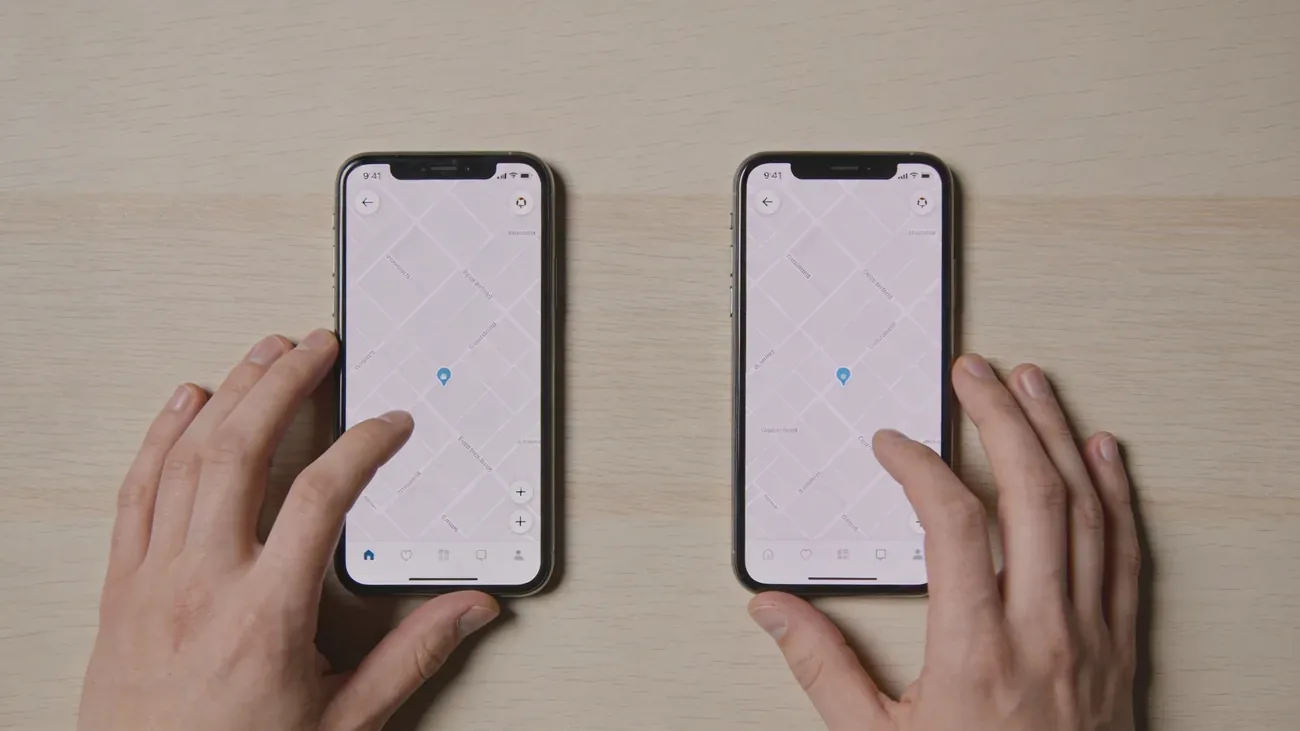
To stop sharing location on an iPhone, open Find My, tap People, tap the person and tap Stop Sharing My Location. On Android, do it in Google Maps: tap your profile picture, then Location sharing, tap the person and tap Stop. WhatsApp Live Location has a third switch inside the chat.
Each system keeps its own list, so stopping in one does nothing to the others. Apple ties its own apps together, and a stop in Find My also ends the share in Messages, Maps and Contacts. Google ties Maps, Messages, Find Hub and Family Link together, but only on the device where you change it. For the setup side, our iPhone location sharing guide covers every way to start a share.
Stop sharing location on iPhone
Stop with one person. Open Find My, tap People, tap the name, tap Stop Sharing My Location, then Stop Sharing Location. Apple says that stopping in one app ends the share across all of them, and the person won’t be notified.
Stop with everyone for now. In Find My, tap Me and turn off Share My Location. This is a pause, not a cleanup: when you turn it back on, everyone you shared with before sees you again.
Hide for the rest of today. Tap the person in People and tap Hide Location. Sharing with that person resumes automatically the next day, so use it for a surprise party or one quiet afternoon, not to end anything.
From Messages or Contacts. In Messages, open the conversation, tap the person’s name at the top and tap Stop Sharing My Location. Deleting the conversation works too: swipe left, tap the delete button and tap Yes. Apple’s personal safety guide says that stops sharing with everyone in that conversation.
Deleting Find My doesn’t stop anything. People you shared with can still see you. Reinstall Find My from the App Store and stop sharing from there. In the meantime, Apple suggests turning off Location Services in Settings > Privacy & Security. Our guide to turning off location on iPhone goes switch by switch.
A shared ETA or Check In
A shared ETA in Maps runs on its own track. Open the route card for the trip in progress, tap Sharing with at the bottom of the screen, then tap Stop Sharing ETA under each name.
Check In in Messages shares your location only if you don’t arrive as expected. After you end a Check In, Apple says that location might stay visible to your contact for a short time, though your ongoing location isn’t shared.
Does the other person get notified when you stop sharing?
No alert goes out on a current iPhone. Apple states the person won’t be notified, and your location simply disappears from their Find My, Maps, Contacts and Messages.
They can still work it out. Apple’s personal safety guide warns that people you shared with may notice you’ve stopped, and that on earlier operating systems a notice may appear in Messages. Turning sharing back on is never silent: per Apple’s location checklist, they get a notification that you started sharing again.
Google documents no alert when you tap Stop in Google Maps or in Android settings. The person just stops receiving your location.
| What you do | Where | How long it lasts | What the other person gets |
|---|---|---|---|
| Stop Sharing My Location | Find My, Messages, Contacts | Until you share again | No alert; your location disappears |
| Hide Location | Find My, Messages | Rest of the day | Sharing resumes the next day on its own |
| Share My Location off | Find My > Me | Until you turn it on | Everyone sees you again when it’s back on |
| Location Services off | Settings > Privacy & Security | Until you turn it on | Apple: no one is notified; Maps loses your location too |
| Stop | Google Maps > Location sharing | Until you share again | No alert documented by Google |
| Use Location Sharing off | Android Settings | Until you turn it on | Shares stay open but stop updating |
| Stop sharing | WhatsApp chat or Privacy | Ends at once | The live share ends; the timer would end it anyway |
Stop sharing location on Android and Google Maps
In the Google Maps app. Tap your profile picture, then Location sharing. Tap the profile of the person you want to drop and tap Stop. Google’s Maps help page lists the same steps, and they are identical in Google Maps on an iPhone.
In Android Settings. Open Settings > Location > Location services > Google Location Sharing, tap the list of people, and tap Stop next to the name. Google says this setting spans Maps, Messages, Find Hub, Family Link and Personal Safety and is device and account specific. Signed in on a tablet too? Repeat it there.
From a computer. Go to myaccount.google.com, click People & sharing, then Location Sharing under “Info you can share with others”. Click Manage Location Sharing, pick the person and tap Stop.
The pause is not a stop. Turning off Use Location Sharing on the same Settings screen freezes your real-time updates, but Google says it won’t stop any of your shares. They pick up again the moment you switch it back on.
Trip progress and links. A trip you shared during navigation ends when you arrive or stop navigating. To end it sooner, swipe up on the information card and tap Stop sharing. A sharing link sent to someone without a Google account works for up to 24 hours. Our Google Maps location sharing guide explains each share type.
A parent-managed account works differently. If a parent supervises the Google account, they manage Location Sharing from the Family Link app. Our guide to a child who turned off location sharing explains what each side sees.
Stop WhatsApp Live Location
WhatsApp keeps Live Location apart from both Apple and Google, and it always runs on a timer you pick when you start, from 15 minutes to 8 hours, as Wired’s walkthrough notes.
- One chat: open the chat, tap Stop sharing, then confirm.
- Every chat at once: open WhatsApp Settings or your profile picture, then Privacy > Live location, and tap Stop sharing.
- Do nothing: the share ends on its own when the timer runs out.
Other location apps, including family locator apps, have their own stop or leave option inside the app. Turning off Find My or Google Location Sharing doesn’t touch them.
Stop sharing with your Family Sharing group
Family Sharing has its own location setting. Go to Settings > Family > Location Sharing and turn it off for each family member you want to stop sharing with. Apple’s Family Sharing guide says you can stop with any member at any time.
Two catches. The organizer’s location is shared automatically with the whole family once they set it up, including members added later. And children or teens with Screen Time parental controls may not be able to change their own setting. If family can still see you after this, read why Family Sharing location stays visible.
How to stop someone from tracking your location on iPhone
When you suspect someone is watching rather than simply sharing, Safety Check is faster than going app by app. It needs iOS 16 or later and an Apple Account with two-factor authentication. Open Settings > Privacy & Security > Safety Check:
- Emergency Reset stops sharing with all people and apps at once, then walks you through connected devices, emergency contacts and your Apple Account password.
- Manage Sharing & Access reviews and stops sharing one person or app at a time.
- Quick Exit, in the top-right corner, closes Settings instantly and keeps the changes made so far.
Apple’s Safety Check guide opens with one warning: plan for your safety before you change anything. If you’re in danger, call 911. The National Domestic Violence Hotline at 1-800-799-7233 helps people plan around a partner who watches their location.
Three more places are worth a look:
- Notifications About You. In Find My, tap Me. If a Notifications About You section appears, someone gets alerts when your location changes. Tap the name, select the notification and delete it.
- Devices. In Find My, tap Devices. Anyone with access to your Apple Account can see that list, so remove any device you don’t recognize.
- Location Services. Turning it off stops every app from using your location, and Apple says no one is notified. The tradeoff: Maps and Find My lose your location too.
Safety Check works through your Apple Account only, so Google Maps and WhatsApp shares need the steps above. For an ex who still sees you, our breakup checklist goes layer by layer.
Why someone can still see your location
- Hide Location wore off. It lasts only until the next day.
- Family Sharing is still on. It’s a separate switch from the People tab in Find My.
- Another app is still sharing. Google Maps, WhatsApp and family locator apps don’t follow Apple’s switch.
- Another Android device is signed in. Google sharing is set per device and account.
- Find My was deleted, not stopped. Sharing continues until you reinstall it and stop.
- A parent or guardian manages the account through Family Link or Screen Time.
- A Check In just ended. Its last location can stay visible for a short time.
To keep new requests from arriving after you’ve cleaned up, open Find My, tap Me and turn off Allow Friend Requests.
Frequently asked questions
Does the other person get notified when I stop sharing my location?
Not on a current iPhone. Apple says the person you stop sharing with won't be notified, and your location disappears from their Find My, Maps, Contacts and Messages. They can still notice the gap the next time they look. On earlier iOS versions, Apple warns a notice may appear in Messages. Turning sharing back on is not silent: the person gets a notification that you started sharing again. Google documents no alert when you tap Stop in Google Maps.
Can I stop sharing my location without anyone knowing?
Partly. No alert goes out when you stop in Find My or Google Maps, but nothing hides the fact that your location is gone. Hide Location in Find My pauses sharing with one person for the rest of the day, then resumes on its own. If the person might react badly, plan first: Apple's Safety Check guide opens with that advice, and the National Domestic Violence Hotline at 1-800-799-7233 can help you plan the timing.
How do I stop someone from tracking my location on my iPhone?
Start with Safety Check in Settings, Privacy and Security. Emergency Reset stops sharing with all people and apps at once, while Manage Sharing and Access goes person by person. Then open Find My, tap Me and delete any Notifications About You you don't recognize, and remove unknown devices from the Devices tab. Turning off Location Services stops every app from using your location, and Apple says no one is notified.
How do I stop sharing my location on Android?
Open Google Maps, tap your profile picture, then Location sharing, tap the person and tap Stop. Or open Settings, Location, Location services, Google Location Sharing, tap the list of people and tap Stop next to the name. Google says the setting is device and account specific, so repeat it on every phone or tablet signed in to your account. Turning off Use Location Sharing only pauses updates.
How do I stop WhatsApp Live Location?
Open the chat where you shared it, tap Stop sharing and confirm. To end every Live Location at once, go to WhatsApp Settings or your profile picture, then Privacy, Live location, and tap Stop sharing. If you do nothing, the share ends on its own when the timer you picked runs out, anywhere from 15 minutes to 8 hours.
Does deleting the Find My app stop sharing my location?
No. Apple says people you shared with can still see your location after you delete Find My. Reinstall it from the App Store and stop sharing from the People tab. In the meantime, Apple suggests turning off Location Services in Settings, Privacy and Security, which keeps your iPhone from sending its location to anyone.
Why can someone still see my location after I stopped sharing?
Usually a second switch is still on. Family Sharing has its own Location Sharing setting, Google sharing is set per device and account, and WhatsApp or a family locator app don't follow Apple's switch. Hide Location also ends the next day, and a parent can control sharing on a supervised account through Family Link or Screen Time.